Ping
Checks whether a host is reachable and shows latency.

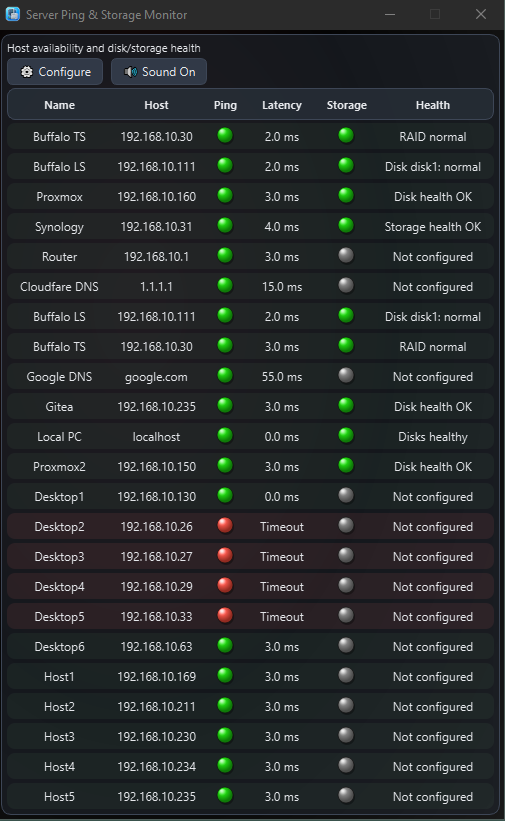
Server Ping & Storage Monitor checks whether hosts are reachable, shows ping latency, and checks storage health depending on the configured device type — including local Windows disks, Linux over SSH, Buffalo devices, Synology NAS, and selected NAS/server setups.
See Server Ping & Storage Monitor in action, including ping monitoring, storage checks, status colors, and alert behavior.
If the video looks blurry, open the player settings and select 1080p.
Server Ping & Storage Monitor monitors two main things: host reachability and storage health.
Checks whether a host is reachable and shows latency.
Checks disk, RAID, NAS, server, or local storage health depending on the configured device type.
The app uses simple color indicators so you can quickly understand monitor status.
OK.
Unknown, busy, delayed, or not fully confirmed.
Error or problem detected.
Disabled or not configured.
Storage health checks are only available for specific configured device types. Not every NAS model, firmware version, storage controller, or vendor output format is supported. Other devices may work, but the app has only been directly tested with the equipment listed on this page.
Synology NAS health checks are intended for supported and tested Synology setups.
Behavior may vary by Synology model, DSM version, permissions, storage configuration, and available health information.
Directly tested with Synology DS713+ with DSM 7.1.1-42962.
Other Synology models or DSM versions may work, but they are not guaranteed unless tested with your setup.
Requires smartmontools to be installed on the monitored Linux or Proxmox host.
The app connects over SSH and runs disk health checks using smartctl.
Debian / Ubuntu / Proxmox:
sudo apt update && sudo apt install smartmontools
RHEL / Fedora / Rocky / AlmaLinux:
sudo dnf install smartmontools
Older RHEL/CentOS:
sudo yum install smartmontools
Checks internal local Windows disks using Windows management information.
USB and common virtual disks are ignored where detectable.
Directly tested on Windows 10 Pro 22H2 for local Windows disk health checks.
SNMP must be enabled on the Buffalo TeraStation device.
The app reads storage and RAID health information over SNMP where compatible output is available.
Directly tested with Buffalo TeraStation TS-XLE56 with firmware 1.76.
Use this option only on a trusted local network.
Older Buffalo LinkStation web access may send credentials over HTTP without network encryption, so it should not be used over untrusted networks, public Wi-Fi, or the internet.
Directly tested with Buffalo LinkStation LS-XL99E with firmware 1.75.
Routers, PCs, servers, and other devices can be monitored for ping availability and latency where reachable from your Windows PC.
Storage checks are only available for configured device types that support them.
The app includes small interface shortcuts to inspect monitor details faster.
Hover over ping or storage values and bulbs to see detailed messages and raw output where available.
Double-click a monitor row to open the detailed monitor information window, including ping result, storage result, messages, and raw output.
Use Configure to add or edit monitors, change visible columns, adjust sounds, logs, text size, and theme.
Adjust monitoring behavior and the interface to match your setup and how you want to be alerted.
Configure the ping interval and ping latency limit so the app can warn you when a host is slow or unreachable.
Adjust how often storage health checks run, depending on how frequently you want NAS, server, RAID, or disk health information refreshed.
Choose whether sound alerts play once or repeat while a problem remains active.
Default alert sounds are included. You can also add your own short custom alert sounds in WAV format.
Change the app text size to make the monitor easier to read on your screen.
Enable or disable columns so the monitor table shows only the information you want to see.
The following equipment and systems have been directly tested with Server Ping & Storage Monitor.
Start free, try everything for 7 days, then pick the license that fits — Personal Standard for up to 10 hosts, or Personal Pro for up to 25.
Supported on Windows 10 64-bit 22H2 or later and Windows 11 64-bit 23H2 or later. First install includes a 7-day trial.